Your shop.
Your products. Your storefront.
Register on acro-yoga.com, get editing access to your storefront and present your products. Connect your online store on request, or simply link each product to your website.
No website required. Every presentation section is optional.
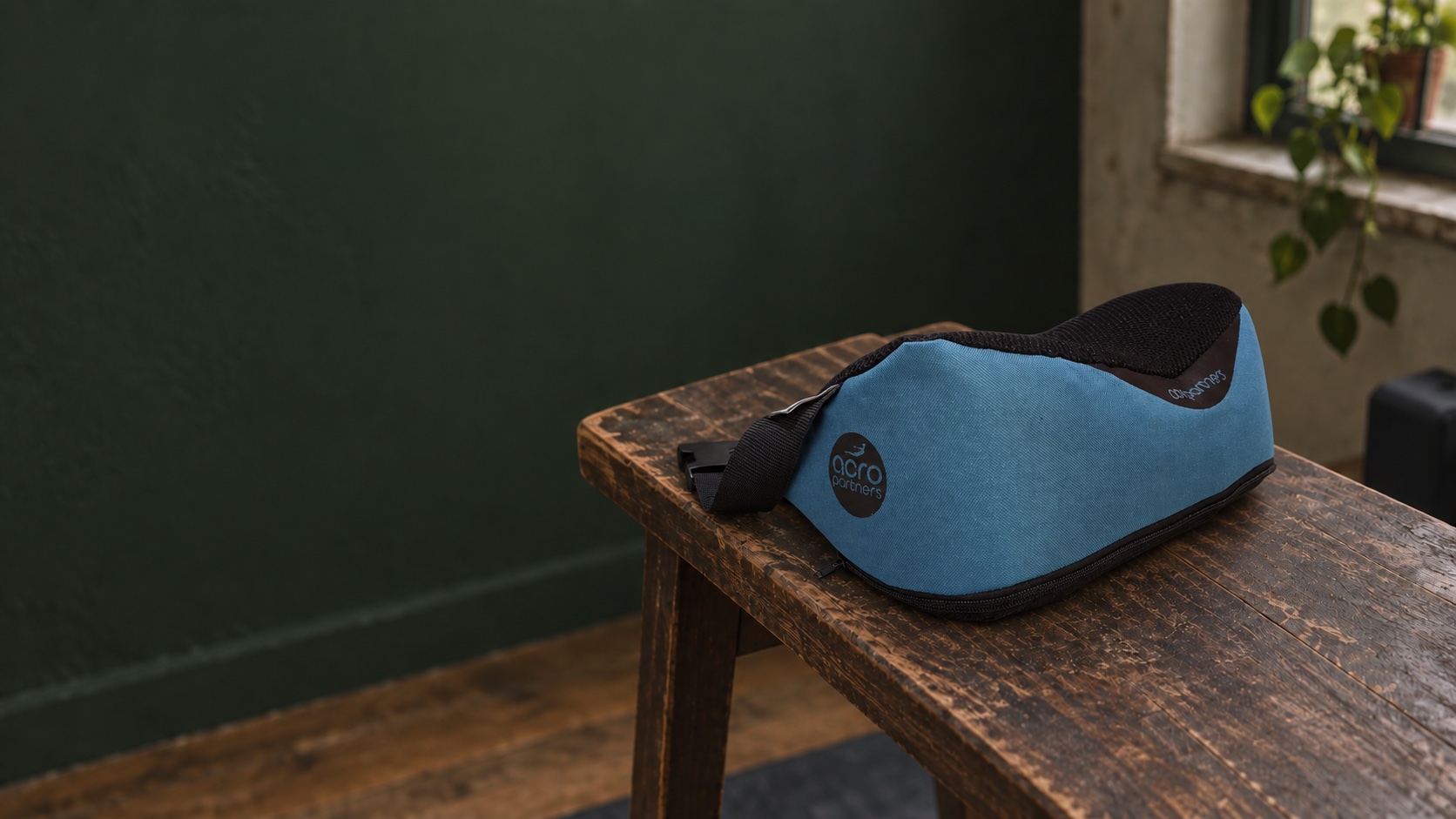
Show what you make.
A clear product photo helps shoppers see the shape, materials and details.
Explore the AcroPartners storefront →Get the keys to your storefront.
1. Create your account
Register with your name, email and password, accept the terms and confirm your email if prompted. Already registered? Sign in with your existing account.
For a new shop, choose Open a storefront. Add your name, a short description and a public contact email. A website is optional.
You can prepare products while Acro reviews your storefront. They become public once the storefront is approved and visible.
2. Get access to your existing shop
If your shop is already listed, request editing access instead of opening another storefront. Include your profile username or link, the storefront link, your role and a way to verify that you represent the shop.
The team reviews your request before granting access. Registration alone does not give you editing rights.
Request storefront accessAlready know a manager? Ask them to add your username in Manage → Team. Owners and co-admins can edit storefront details, products and presentations.
Use the existing storefront rather than creating a duplicate. Only invite people who should manage your whole storefront.
Edit your shop and products.
Settings links below open your storefront list. Choose your shop to go straight to the relevant tab. Save and publish actions are available inside its editor.
Your storefront
- Sign in and open Sellers. Choose your shop under Your storefronts, or use Manage storefront on its page.
- Open the Storefront settings to update your name, description, logo, banner, website, location and public contact details.
- Choose Save changes, then open your storefront to check it. These edits update the storefront directly.
If your shop does not appear under Your storefronts, check that you are signed in with the account that was granted access.
Your products / articles
- Open Products. Choose Add product, or the pencil (Edit item) beside an existing product.
- Update its name, description, photo, price, category and purchase link, then choose Save product. Set its status to Published when ready.
- Choose Presentation to add extra photos, highlights, a story and FAQs. Save a draft, preview it, then publish the presentation separately.
For connected products, edit names, prices and stock in your source store; use Edit presentation here for the additional content.
Choose your setup.
Add your products on Acro.
- Open Manage → Products managed on Acro and choose Add product.
- Add a name, description, photo, category and optional price. Paste the product’s page on your own website into Purchase link (optional), or leave it blank so shoppers can contact you.
- Choose Save product to open the optional presentation editor. For an existing item, choose Presentation.
No store connection is needed. Shoppers follow the product link to your website, where you handle checkout, payment, delivery and returns. Keep prices and links here up to date; they do not sync automatically.
Add the details that matter.
You don’t need to fill every box. One clear introduction and a few good photos are a useful place to start.
A short introduction
What is it, and who is it for?
Use a few useful sentences. Add a label and headline if you want to introduce a feature section.
Photos that explain
Show more than one angle.
Upload up to 20 photos or paste HTTPS image links. Add a short description, then use Move up / Move down to arrange them after the main catalog image.
The useful details
Give shoppers a reason to choose.
Add up to eight highlights about materials, dimensions, construction, intended use or care. Keep claims factual.
The story behind it
Put a person behind the product.
Add a heading, story, photograph and link. Your storefront story is the default, so you only need to add what is specific to this product.
Questions & contact
Make the next step easy.
Answer up to 12 common questions. Optionally add a public email or HTTPS contact / WhatsApp link. Otherwise, your storefront contact details are used.
Preview it. Refine it. Make it live.
Save draft
Store your work privately. Your published page stays unchanged.
Preview draft
See your optional content before publishing. The product page also includes catalog details and purchase controls.
Publish presentation
Save and publish your additions. Choose View product to check the result on desktop and phone.
Example styled presentation
The same photo, story, highlight and FAQ sections used on product pages, shown with illustrative copy and an AcroPartners photo.
The details shoppers want to know
Materials
Describe the fabric, finish and feel of your product.
Size & fit
Share dimensions and help shoppers choose the right option.
Care
Explain how to clean, store and look after it.
Behind the product
Tell the story behind your product
Pair a clear photograph with your own words: why you made it, how it is made and what makes it useful. This is example copy to show the layout, not a description of the pictured product.
Your questions, answered
Add these sections in Products → Presentation. Previewing does not publish your changes.
Before you go live
- Your storefront must be approved and visible.
- Manual products must also be published; a shop connection must be active.
- Check photos, contact details and product claims for accuracy.
Want a simpler page? Unpublish presentation removes the additions and keeps your draft. The basic product remains available.